
A QR code menu lets guests open your menu on their own phone with a single scan: no app to install, and no printed menus to throw away every time a price changes. In this guide you’ll learn how to make a QR code menu for your restaurant, café or bar in about 15 minutes, for free, including the printing and placement details most guides skip.
Short answer: put your menu on a mobile-friendly web page, generate a QR code that points to that page, test it on a few phones, and print it on table cards. Use a menu platform instead of a PDF, so you can change dishes and prices later without reprinting the code.
What is a QR code menu?
A QR code menu is a digital version of your menu that opens in the phone’s browser when a guest points their camera at a printed code. The QR code itself is just a link. What really matters is the page it opens, because that page is your menu.
Guests don’t need to download anything: the built-in camera on modern iPhones and Android phones recognises QR codes automatically.
What you need before you start
- Your current menu (paper, PDF or even a photo of it)
- Up-to-date prices
- Allergen information for each dish
- A few good photos of your best dishes (optional, but they sell)
- Your logo
How to make a QR code menu in 7 steps
Step 1: Get your menu content in order
A QR code menu is only as good as the menu behind it. Organise everything into clear categories (starters, mains, desserts, drinks), then give every dish a name, a price and a one-line description. Long paragraphs are hard to read on a small screen, so keep descriptions short and specific.
This is also the moment to add allergens. Guests increasingly check them before ordering, and in many countries you’re required to provide them. Our guide on food allergen requirements in menus explains what to include.
Step 2: Choose where your menu will live: PDF or web menu
The fastest option is to upload a PDF and point a QR code at it. It works, but guests then have to pinch and zoom through a document designed for paper. A web menu built for phones is easier to read and much easier to keep up to date.
| PDF menu | Web menu (menu platform) | |
|---|---|---|
| Reading on a phone | Pinch and zoom | Designed for small screens |
| Changing a price | Edit the file, export, upload again | Edit it in seconds from your phone |
| Sold-out dishes | Stay on the menu | Hidden with one tap |
| Multiple languages | One file per language | Guests pick their language |
| Ordering from the table | Not possible | Possible |
A PDF is fine as a quick stopgap. For a menu you’ll use every day, a web menu wins.
Step 3: Build your digital menu
You can use any menu platform for this step. Here’s how it works with Elegant Menu, which has a free-forever plan and doesn’t ask for a credit card:
- Create a free account.
- Add your categories, such as Starters, Pizza, Desserts and Drinks.
- Add your dishes with name, price, description, photo and allergens.
- Open the preview on your phone and check that everything reads well.
The free plan covers 6 categories with up to 15 items each, which is enough for many cafés, bars and small restaurants. Already have a PDF or a photo of your menu? On the Standard plan, the menu is built for you from your PDF or image, so you don’t have to type anything.
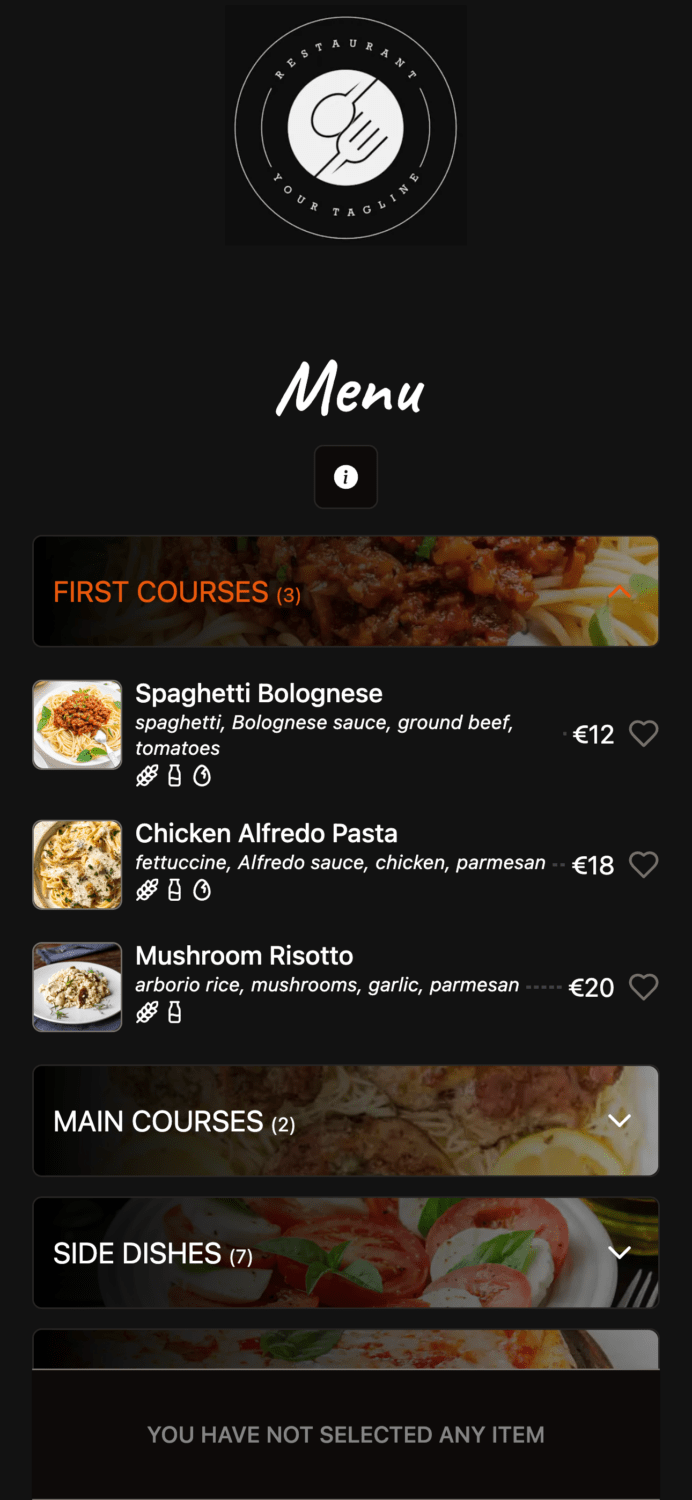
Step 4: Generate your QR code
Once your menu has its own web address, the QR code is the easy part. In Elegant Menu you download it from your profile with one click. Because the code points to your live menu page, every change you make shows up instantly, and you never need to reprint it.
If you use a general QR code generator instead, paste the link to your menu page, not to a file that you might replace later. More on that in the static vs dynamic section below.
Step 5: Design and print it so it actually scans
- Size: at least 2.5 × 2.5 cm. On table cards, 3–4 cm is safer. A useful rule of thumb is that a code scans comfortably from about ten times its width.
- Contrast: dark code on a light background. Avoid pale colours and inverted (light-on-dark) codes, which some phones struggle with.
- Quiet zone: leave a clear white margin around the code. Don’t let text or graphics touch it.
- Call to action: add a short line such as “Scan to see our menu”, or “Scan to see the menu and order” if you take orders.
- Finish: choose matte rather than glossy. Glossy cards reflect lamps and make scanning harder.
- Durability: laminated cards or acrylic table stands survive spills and cleaning far better than paper.
Step 6: Place it where guests already look
- A table stand in the middle of each table (more visible than a sticker on the edge)
- Your front window or door, so passers-by can check the menu before they walk in
- The bar counter and the waiting area
- Takeaway bags and receipts, for the next order
- Online: use the same menu link on your Google Business Profile, Instagram bio and your website
Step 7: Test before you go live
- Scan the printed code with an iPhone and an Android phone, including an older one
- Try it from a seated position and in the dimmest corner of the room
- Check that the menu loads quickly on mobile data, not just on your Wi-Fi
- Tap through every category and double-check prices
- Ask a colleague who hasn’t seen it to find a specific dish
Static vs dynamic QR code: which one do you need?
| Static QR code | Dynamic QR code | |
|---|---|---|
| What it contains | The final link, fixed forever | A short link that redirects to your menu |
| Change the destination later | No, you need a new code | Yes |
| Typical cost | Free | Often a paid subscription |
| Stops working if… | The linked page is removed | The redirect service or subscription ends |
Here’s the part many restaurant owners miss: if your QR code points to a menu page that you edit, a free static code is all you need. The page changes, not the code. Be careful with “free” generators that create dynamic codes: if the trial ends, the codes on your tables can stop working overnight.
How much does a QR code menu cost?
The QR code itself costs nothing. What you pay for, if anything, is the menu behind it and the extra features. With Elegant Menu, the free plan includes your digital menu, item photos and the QR code download. Paid plans start at €7 per month (billed yearly) and add things like no ads, order management, translations, online payments and a custom menu link. The only other cost is printing your table cards or stands.
Common QR code menu mistakes to avoid
- Linking to a heavy PDF. It loads slowly and is hard to read on a phone.
- Codes that are too small or printed on glossy paper. Guests give up after two failed scans.
- No instruction next to the code. A plain square on the table doesn’t tell anyone what it’s for.
- An out-of-date menu. Showing dishes you’ve run out of frustrates guests and staff. Hide them as soon as they sell out.
- No paper backup. Keep a few printed menus for guests who prefer them or whose phone battery is empty.
- Relying on a trial QR service. Make sure your codes don’t depend on a subscription you might cancel.
Take your QR code menu further
Once your menu is live, the same QR code can do much more than show prices:
- Translations for tourists: let each guest read the menu in their own language. See how to add multiple languages to your menu.
- Ordering from the table: orders arrive on a live board, and guests follow their order status on their phone. Read more about orders management.
- Sales insights: see which dishes sell and how much each one earns, so you can price smarter.
- NFC as an alternative: guests tap their phone instead of scanning. Compare the options in NFC tags vs QR codes.
QR code menu FAQ
Do customers need an app to scan a QR code menu?
No. The camera app on modern iPhones and Android phones reads QR codes directly and opens the menu in the browser.
Can I make a QR code menu without a website?
Yes. A menu platform gives your menu its own web address, and the QR code points there. You don’t need a website of your own, although you can link to the menu from one if you have it.
Can I change prices without reprinting the QR code?
Yes, as long as the code points to a web menu rather than a PDF you replace. Edit the menu, and every guest sees the new prices on their next scan.
Is a QR code menu free?
The basics are. You can create a digital menu and download its QR code on Elegant Menu’s free plan. You only pay if you need extras like ordering, payments or translations.
Should I still keep printed menus?
Keep a few. Most guests are happy to scan, but some prefer paper, and a printed copy saves the day when a phone is out of battery.
Create your free QR code menu today
You now know how to make a QR code menu that guests can actually scan and read. The quickest way to put it into practice is to build your menu, download the code and print your first table card today. It takes about five minutes to get started, and it’s free.
Leave a Reply
You must be logged in to post a comment.