New: Just Tell Your Menu What to Change with the Elegant Menu Assistant
The new Elegant Menu assistant lets you add dishes, change prices and translate your menu by typing in plain words. You review every change and approve it with one tap.
On this page
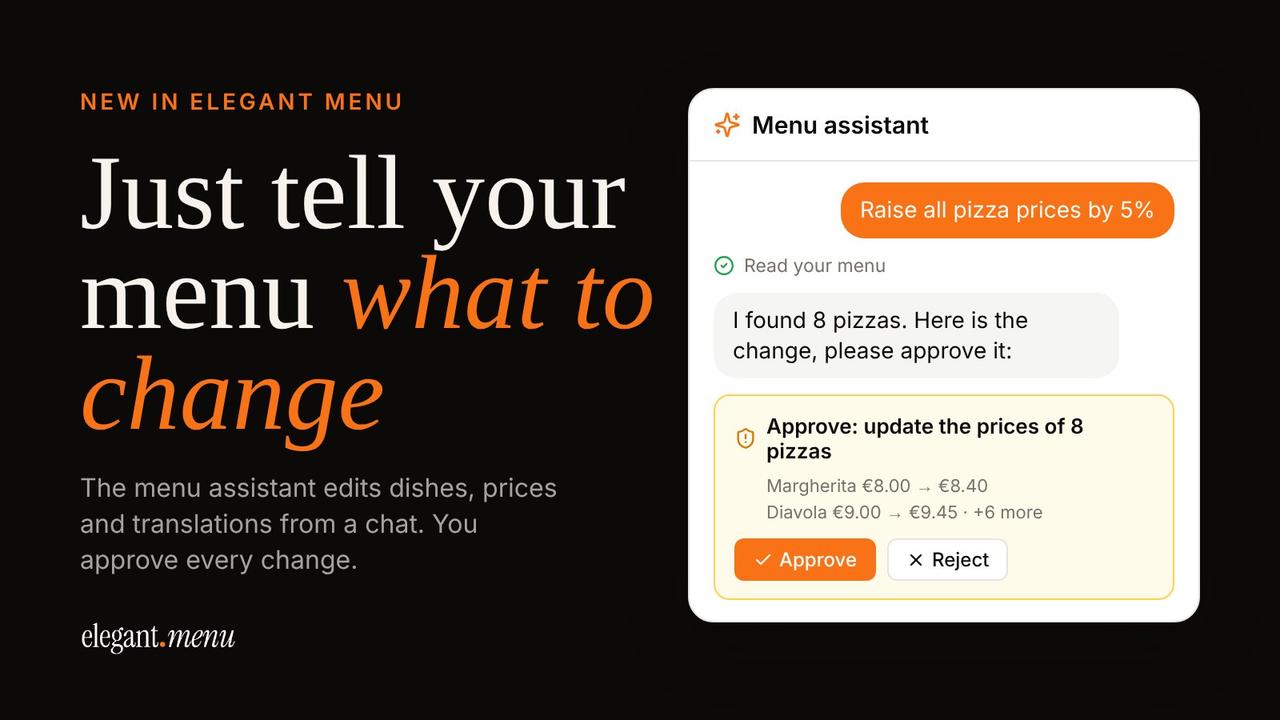
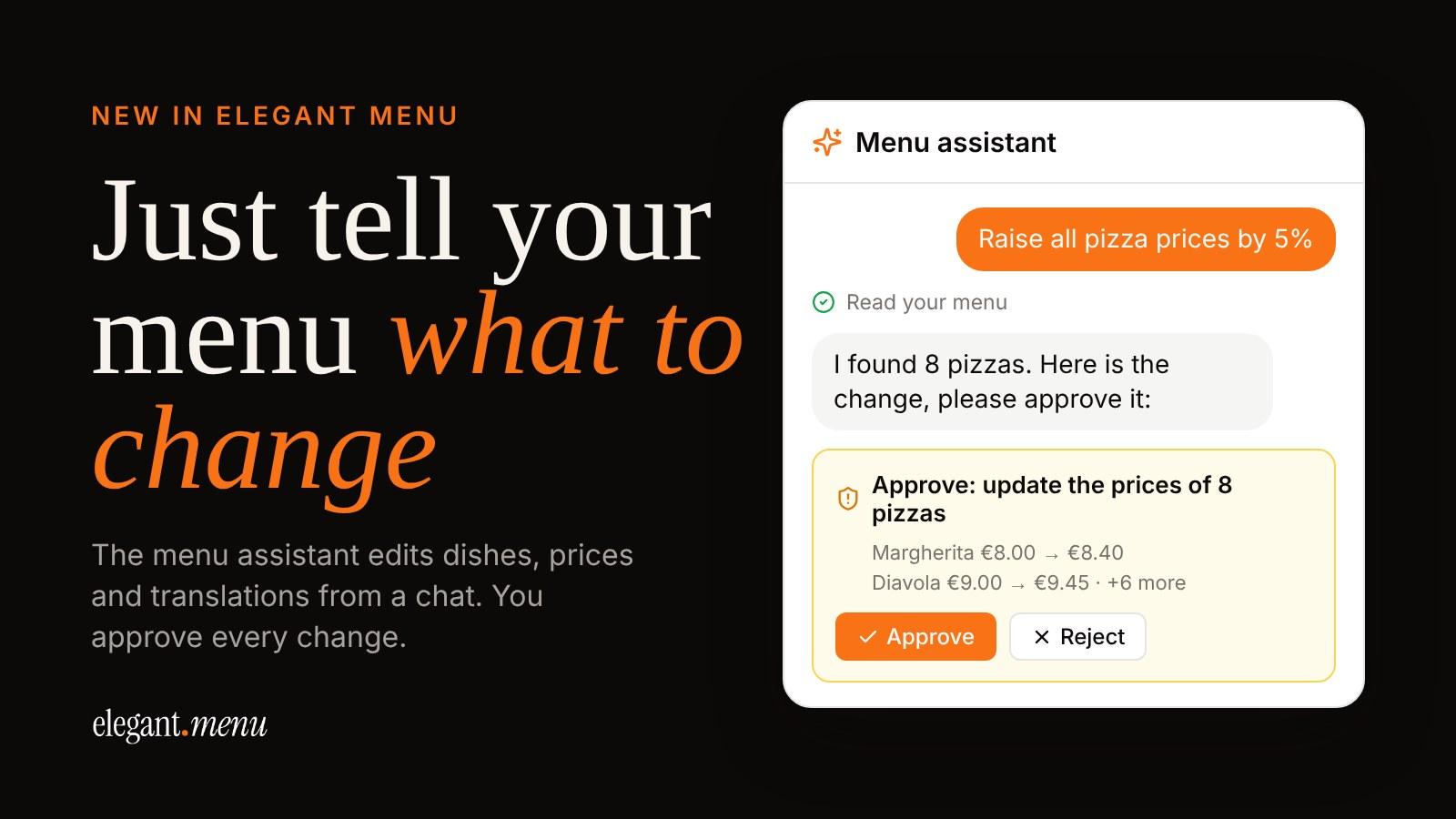
Updating a menu usually means opening each dish, changing a field, saving and moving on to the next one. The new menu assistant in Elegant Menu skips that. You type what you need in plain words, like “raise all pizza prices by 5%”, and the assistant prepares the change for you. Nothing is saved until you check it and tap Approve.
Short version: open the menu assistant in your Elegant Menu dashboard, write what you want to change, review the change it suggests, and approve it with one tap. It works on every plan, including the free one.
What can the menu assistant do?
The assistant works on your own menu and restaurant details. You can ask it to:
- Add, edit or remove dishes and categories by chatting, without filling in forms.
- Change prices for one dish or a whole category at once.
- Translate dish names and descriptions into the languages you offer your guests.
- Update your restaurant details without clicking through settings.
What you can type: real examples
Write the way you would talk to a colleague. A few requests that work well:
| You type | What the assistant prepares |
|---|---|
| Raise all pizza prices by 5% | A new price for every dish in the Pizza category, ready to approve |
| Add Burrata con pomodorini to Starters, €11 | A new dish in the Starters category at €11 |
| Remove the Tiramisù | The dish taken off your menu |
| Rename “Primi” to “Pasta” | The category renamed |
| Translate the new dishes | Names and descriptions translated into your menu’s languages |
You approve every change
The assistant first reads your menu, then shows you exactly what it is about to change in an approval card. For a price change you see each dish with its old and new price. Tap Approve and the change is applied; tap Reject and nothing changes.
Like any AI tool, the assistant can make mistakes, so read the approval card before you tap. That’s the point of it: the assistant does the clicking, you keep the final say.
Guests see approved changes right away
Once you approve, the change is live on your QR menu. Guests who scan the code see the new price or the new dish straight away, with nothing to reprint. If you’re still working out what to charge, our guide on how to price menu items walks through the food cost formula; the assistant then makes it quick to apply the result across a whole category.
How to start using the menu assistant
- Log in to your Elegant Menu account, or create one for free.
- Tap the menu assistant button in your dashboard. On a computer it opens as a side panel, on a phone as its own page.
- Type what you want to change and send it.
- Check the approval card and tap Approve.
Don’t have a menu yet? You can upload a photo or PDF of your paper menu and Elegant Menu turns it into a digital one (free for a limited time). Our guide on turning a PDF menu into a QR code shows how. From there, the assistant handles the day-to-day edits.
Tips for good requests
- Name the category or dish as it appears on your menu, so the assistant finds the right one.
- Give the price when you add a dish.
- Keep big jobs in steps. “Raise pasta prices by €1” then “translate the new desserts” works better than one very long request.
FAQ: the Elegant Menu assistant
Is the menu assistant free?
Yes, it’s available on every plan, including Free. Use is counted per month, and you can see how much of this month’s allowance you’ve used inside the chat.
Can the assistant change my menu without asking?
No. Changes to your menu wait for your approval. If you reject a change, nothing is saved.
Can I still edit my menu the normal way?
Yes. The menu editor works exactly as before. The assistant is an extra, faster way to make changes.
Can it translate my whole menu?
It translates dish names and descriptions into the languages you’ve added to your menu, so guests can read it in their own language. See how to add languages to your menu.
Try it on your menu
The next time a price changes or a dish runs out, skip the forms and just tell your menu what to change.