Which QR Menu Platforms Support PDF Uploads? PDF Menu to QR Code, Step by Step
Turn a PDF menu to QR code in two ways: host the PDF as-is, or convert it into a mobile menu. Which platforms support PDF uploads, compared, plus a step-by-step guide.
On this page
- Which QR menu platforms support PDF uploads?
- PDF menu to QR code: hosting or converting, what is the difference?
- How to turn a PDF menu into a QR code menu, step by step
- How to prepare your PDF so the import works first time
- When is a plain PDF menu QR code good enough?
- Common mistakes when you turn a PDF menu into a QR code
- What does Elegant Menu do with a PDF menu?
- FAQ: PDF menus and QR codes
- Turn your PDF into a QR menu today
You can turn a PDF menu to QR code in two ways: upload the PDF to a QR code generator that links straight to the file, or upload it to a QR menu platform that reads the PDF and rebuilds it as a mobile menu. The first takes five minutes and gives guests a document to pinch and zoom; the second takes a little longer and gives them a menu they can read, filter by allergen and order from.
Short answer: as of October 2026, Menubly, MENU TIGER, MenuHoster, BuonMenu and Elegant Menu, the QR menu and ordering platform, all accept a PDF and turn it into a digital menu. QR TIGER and QR Code Generator PRO host the PDF itself behind a QR code. If you only need guests to see your existing design, a PDF QR code is enough. If you want price changes in seconds, allergen labels, translations or ordering, convert the PDF instead.
Which QR menu platforms support PDF uploads?
At least seven popular tools accept a PDF menu, but they do very different things with it: five convert it into an editable mobile menu and two simply link a QR code to the file. The table below shows what each vendor states on its own site.
| Platform | What happens to your PDF | Other files accepted | Free option | Paid plans from | Ordering from the menu |
|---|---|---|---|---|---|
| Elegant Menu | Converted: “Upload your PDF menu or menu photos and we build your digital menu for you” | Menu photos | Free plan (6 categories × 15 items) | €7/month, billed yearly | Yes, with live order board and online payments on paid plans |
| Menubly | Converted: upload a PDF or photo and Menubly converts it to an online menu for free | Photo, Excel, CSV | Free forever plan | $7.99/month, billed yearly | Yes, pickup and delivery |
| MENU TIGER | Converted by AI, then you review and edit | JPEG, PNG | Free plan, 75 orders/month | US$17/month | Yes, QR and online ordering |
| MenuHoster | Converted into an online menu page with a permanent QR code | JPG, PNG, WebP, pasted text, a URL | Free plan, 1K views and 3K scans per rolling 30 days | $15/month, billed yearly | Yes, pay-at-pickup; card payments on Pro |
| BuonMenu | Converted by AI (max. 30 MB); images in the file are not imported | Word (.docx), OpenDocument (.odt) | 14-day free trial | €25/month, billed annually | Not listed on the pricing page |
| QR TIGER | Hosted as a file behind a dynamic QR code | Images, documents | Free, with your email | Not stated on the page we checked | No, view-only |
| QR Code Generator PRO | Hosted as a PDF (up to 20 MB), optionally with a landing page | None listed | “Get started for free” (terms not stated) | Not stated on the page we checked | No, view-only |
How we checked: we opened each vendor’s own pricing, feature or help pages in October 2026 and recorded only what they state; follow the links for the current details. Menubly lists “Support converting PDF menu to digital” on its Pro plan while its FAQ says conversion is free, so confirm with Menubly which applies to you. Plans and limits change often, so check before you buy.
PDF menu to QR code: hosting or converting, what is the difference?
Hosting keeps your PDF exactly as it is and opens it when a guest scans; converting reads the text out of the PDF and turns each dish into a separate item you can edit, translate and sell from. Both start with the same upload, but the result on the guest’s phone is very different.
| Hosted PDF behind a QR code | PDF converted into a mobile menu | |
|---|---|---|
| Setup time | About 5 minutes | 15–30 minutes, including checking the import |
| Looks like | Your print design, shrunk to a phone screen | Mobile layout with categories, photos and search |
| Changing a price | Edit the PDF, export, upload again | Change one field, live instantly |
| Sold-out dishes | Stay on the menu until you re-upload | Hide with one switch |
| Allergens | Only if printed in the PDF | Labels per dish |
| Translations | One PDF per language | Built in on many platforms |
| Ordering and payment | Not possible | Possible on platforms that support it |
QR TIGER says it plainly in its own PDF menu guide: a PDF menu QR code is view-only, so customers cannot place orders or pay through it. That is fine for some venues and a dealbreaker for others.
How to turn a PDF menu into a QR code menu, step by step
To turn a PDF menu into a QR code menu, clean up the PDF, upload it to a platform that converts it, check every price and allergen, add photos, then download and print the QR code. Here is the process in six steps.
1. Export the latest version of your menu
Export the PDF straight from the file you design in (Canva, Word, InDesign) rather than scanning a printed copy. A text-based PDF is read far more accurately than a photo of paper. If all you have is the printed menu, take a sharp, straight photo in daylight, one page per photo.
2. Choose: host or convert
Use the table above. If your menu changes twice a year and you never take orders at the table, hosting is fine. If you change dishes weekly, run out of specials, serve tourists or want orders from the table, convert.
3. Upload the PDF
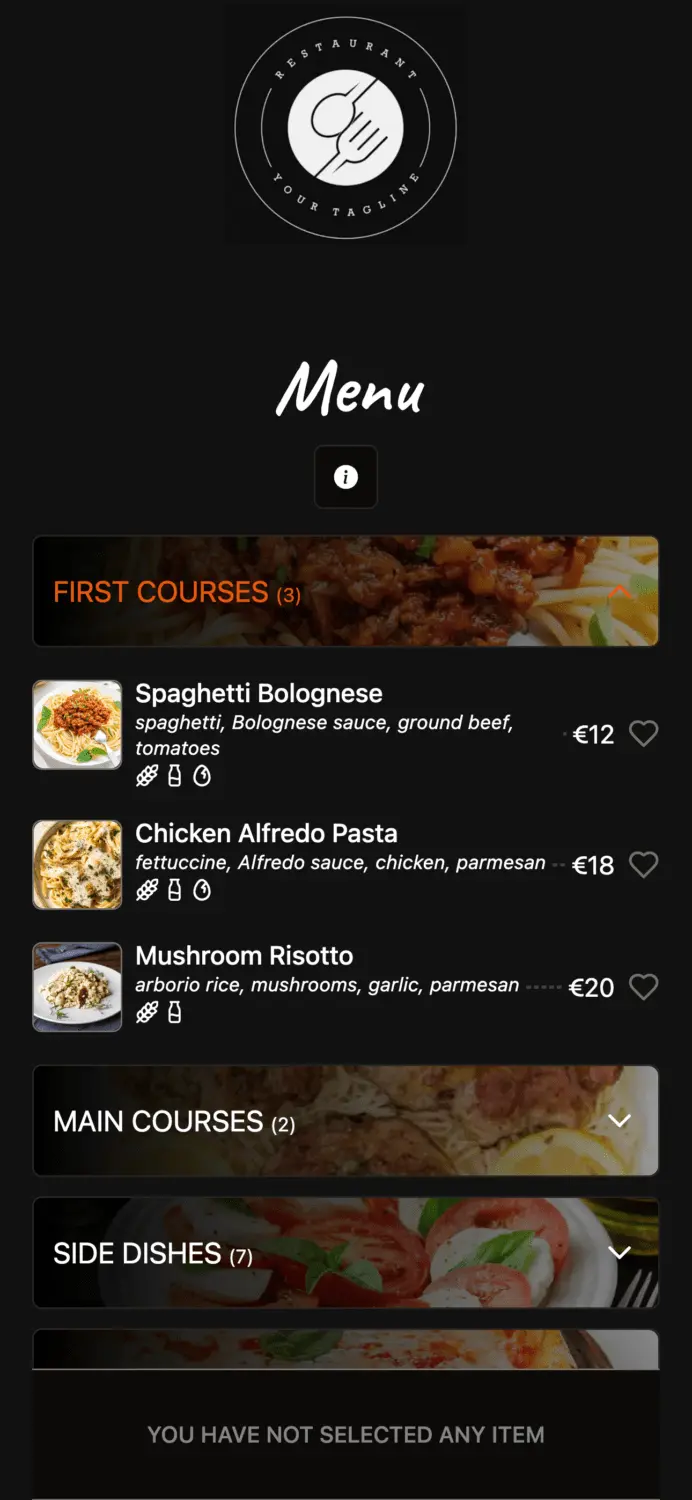
Create an account and upload the file. In Elegant Menu you sign up for free and send your PDF menu or menu photos; the digital menu is built for you, with categories and dishes ready to edit. If a platform asks you to retype everything, it does not really support PDF uploads.
4. Check every price, name and allergen
Read the imported menu line by line against your PDF. Vendors are open about where conversion slips: BuonMenu warns that its AI can make mistakes with prices, ingredients and allergens, and MENU TIGER notes that stylised fonts, crowded pages and blurry photos are harder to read. Pay special attention to:
- Prices with decimals and two sizes on one line (e.g. “Small 9 / Large 13”).
- Add-ons written as sentences (“add bacon for €2”), which usually need to become options.
- Allergens. A PDF often shows them as small numbers or icons that an import misses. Set them per dish; our guide to allergen rules for menus explains what you must show.
5. Add what the PDF could never do
This is where converting pays off. Add a photo to your best sellers, mark sold-out items as unavailable, and add languages for tourists. In Elegant Menu, translations cover 1 language on Basic and 8 languages on Standard (see how to add multiple languages to your menu). Now is also a good time to check your prices: our food cost formula guide shows how.
6. Download the QR code, test and print
Download the QR code, scan it with two different phones (one iPhone, one Android) over mobile data, then print it at least 3 × 3 cm on every table. Our step-by-step guide on how to make a QR code menu covers sizes, placement and table tents in detail.
How to prepare your PDF so the import works first time
A PDF imports cleanly when it is text-based, laid out in one clear column per section, and has each price on the same line as its dish. Five minutes of preparation saves half an hour of corrections:
- Use the export, not a scan. If you can select text in the PDF with your mouse, a platform can read it.
- Remove decoration. Background photos, watermarks and script fonts behind text confuse the reader.
- One price per line. Write “Margherita – 9.50” rather than putting all prices in a separate column.
- Clear section headings. “Starters”, “Pizza”, “Desserts” become your categories.
- Check the file size. Limits vary: BuonMenu accepts up to 30 MB and QR Code Generator PRO up to 20 MB.
When is a plain PDF menu QR code good enough?
A plain PDF behind a QR code is good enough when your menu rarely changes, fits on one or two pages, and you take every order at the table in person. Typical examples are a wine list that changes once a year, a set menu for an event, or a hotel information sheet.
It stops being enough when guests start zooming and scrolling sideways to read a three-page PDF, when staff have to say “sorry, that’s sold out” several times a night, or when you print a new PDF every time a supplier raises a price. If you use a dynamic QR code, you can always upload a converted menu later without reprinting the code.
Common mistakes when you turn a PDF menu into a QR code
The most common mistake is printing a static QR code that points at one PDF file, so every menu change means new codes on every table. Others to avoid:
- Linking to a file in Google Drive or Dropbox. Links break when someone moves or renames the file, and guests may see a sign-in or download page.
- A huge file. A 15 MB PDF on a weak terrace connection loads slowly. Compress images before you export.
- Trusting the import blindly. One wrong price is a refund; one missed allergen is far worse.
- Forgetting the paper menu. Keep a few printed copies for guests without a phone or with a flat battery.
What does Elegant Menu do with a PDF menu?
Elegant Menu turns your uploaded PDF or menu photos into a digital menu that you then edit like any other: change prices from your phone, hide sold-out dishes, label allergens on every dish and translate the menu. Guests can order straight from the QR menu; orders appear on a live order board and guests follow their order on a status page. Paid plans add online payments (2% fee on Basic, 1.5% on Premium), and Standard and Premium add order alerts in Telegram. The Free plan covers 6 categories with 15 items each, item photos and the QR code; paid plans start at €7 a month billed yearly. See a live example menu to judge the result, and read how orders management works.
Where others are stronger: MenuHoster accepts the widest range of inputs (WebP, pasted text and a URL as well as PDF), BuonMenu also imports Word and OpenDocument files, and if you only want your exact print design online, a free PDF QR code from QR TIGER is the quickest route.
FAQ: PDF menus and QR codes
Can I turn a PDF menu into a QR code for free?
Yes. QR TIGER lets you create a PDF menu QR code for free with your email address, and Menubly, MENU TIGER, MenuHoster and Elegant Menu all have free plans you can start with.
Which is better for guests, a PDF or a digital menu?
A digital menu is easier to read on a phone because it is laid out for a small screen, while a PDF is a print page that guests must zoom and scroll. A digital menu can also show allergens, photos and translations per dish.
Do I need a new QR code when my PDF menu changes?
Not if you use a dynamic QR code or a QR menu platform, because the code points to a link you can update. A static code that points at one file has to be reprinted.
Can guests order from a PDF menu?
No, a PDF menu is view-only. To take orders and payments from the table, convert the PDF into a digital menu on a platform with ordering.
How accurate is importing a menu from a PDF?
Dish names and categories usually import well from a clean, text-based PDF, but prices, options and allergens need checking. Vendors themselves advise reviewing the result before it goes live.
Turn your PDF into a QR menu today
Upload your PDF menu or photos, check the result, and put a QR code on your tables this week. Start for free, no credit card needed.